Showing posts with label proteus. Show all posts

Friday, 9 December 2016

Serial communication with arduino

In this post, we will learn how to serial communicate other device or arduino suing serial communication.

Introduction:

Serial communication (RS-232) is widely used communication for data transfer. It just uses three wires: Rx, Tx and GND

  In serial communication, 8/9 -bit is transferred through a single wire. The data frame is like this:

Start bit > Data fields (8 or 9 bit data) > Stop bit

Friday, 2 December 2016

Arduino based DC Voltmeter (0-50 volts)

In this post, we are going to make digital voltmeter using arduino uno. It's a DC voltmeter and it's range is 0 to 50 volt. As we know, arduino is an open source hardware prototyping platform used worldwide by the hobbyists, educators and students across the globe.
This is a handy voltmeter.

Stuff required:

  1. Arduino uno
  2. 16*2 lcd
  3. 10k pot
  4. voltage source

Tuesday, 21 June 2016

Simulate program in proteus

In this post, we will cover how to simulate program files in proteus.

Proteus is a simuation software used for simulating analog/ digital circuits as well as for simulating embedded based projects. It can used for simulating 555 based, transistor based circuits. It's a very good tool for hobbyists, students and professionalists. This is not a freeware however one can download the trial version from the official website or simply purchase it.

Step 1: First of all, choose the components from the library by simply right clicking on grid area.

Search component in proteus library
Components from libraries
Step 2: In keywords box, type atmega 16 and  select appropriate components from the listed item.

Wednesday, 6 April 2016

Simulating arduino uno in proteus

By default, proteus don't have any library for arduino.

First of all, install library for proteus using the previous post Arduino library

Now, one problem arises how to get hex file of our program.

It lies in the following directory:
C:\Users\ \AppData\Local\Temp

You can make a shortcut of temp folder on your desktop to easily access it. By default, temp folder is hidden you have to unhide it.

This picture will make it simple

file directory for arduino hex file
File directory
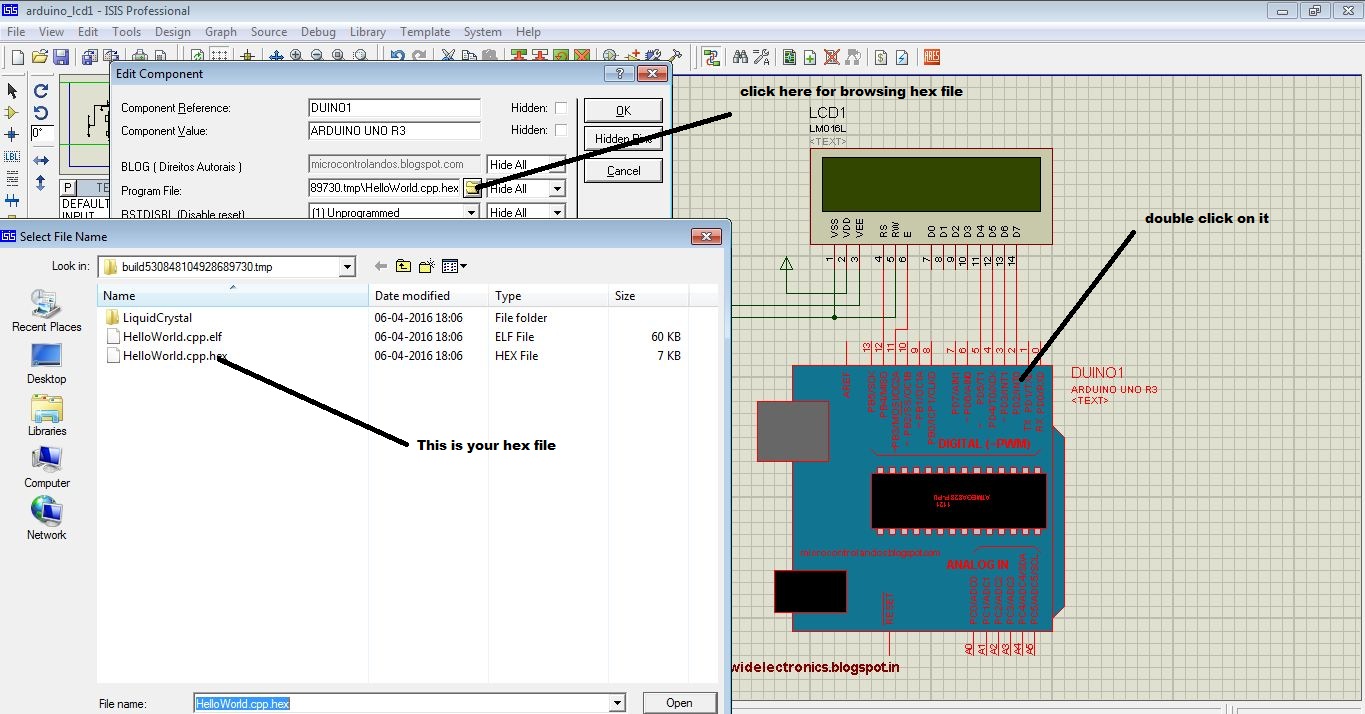
In proteus, double click on arduino uno. It will pop-up a window named edit component on program file click on browse icon to browse your hex file.
Browsing hex  file for proteus simulation
Browsing hex file
Always double the time and date of your hex file to ensure that are using correct file.

Thanks for giving your valuable time.

Stay tuned for more updates !!


Interfacing lcd with arduino

How to interaface lcd (4-bit interface) with arduino?

In this tutorial, we are going to discuss , how to interface lcd with arduino.

We are using 16*2 lcd, means it have two rows and 16 columns. Overall, we can display 32 characters.
16*2 alphanumeric lcd
16*2 LCD

Lcd have 16 pins, out of which six are connected to arduino. D4-D7 are data pins. RS, RW and EN pins are also there. RW pin is permanently grounded since we are writing to lcd.
Pin no 3 is connected to pot (10k) in order to change the contrast. Pin no 15 and 16 are for backlight.
Since lcd don't have any backlight.

Code:

// include the library code:
#include <LiquidCrystal.h>

// initialize the library with the numbers of the interface pins
LiquidCrystal lcd(12, 11, 5, 4, 3, 2);

void setup() {
  // set up the LCD's number of columns and rows:
  lcd.begin(16, 2);
  // Print a message to the LCD.
  lcd.print("hello, world!");
}

void loop() {
  // set the cursor to column 0, line 1
  // (note: line 1 is the second row, since counting begins with 0):
  lcd.setCursor(0, 1);
  // print the number of seconds since reset:
  lcd.print(millis() / 1000);
}

Proteus simulation of arduino uno
Simulation in proteus
Hope, you had enjoyed the tutorial.

Stay tuned for more updates !!

How to add library to proteus

In this post, we are going to discuss how to place library in proteus. As we all know that, there is no library of many components/ devices in arduino. We can add external libraries to proteus either provided by third party or written by an individual.

Basically, library consists of two files having extension .IDX and .LIB

We have to place these two files in the following directory:

C:\Program Files (x86)\Labcenter Electronics\Proteus 7 Professional\LIBRARY

If you are using 32-bit windows, then you to place  file in Program Files. As there is no Program Files(x86) in 32-bit windows.

Download arduino library from the link given below:

Download from here:

Now extract this rar file. You have to place only arduino.idx and arduino.lib in library folder.

how to add library in proteus

Proteus
Check this video:


Hope, you had enjoyed the tutorial.

Stay tuned for more updates..